


Tarun Singh Rawat
Enpass team member
-
Joined
Everything posted by Tarun Singh Rawat
-
At the moment, we don’t have any updates to share. While we can’t confirm a release date just yet, rest assured the fix is still on our roadmap and will be released once it's ready.
-
Our technical team is informed and is currently investigating the issue. We’ll update you as soon as we receive an update from them. #SI-4410
-
The Enpass browser extension communicates with the Enpass app via a localhost address. To help us verify which port the Enpass server is using, please follow the steps below on your Ubuntu system: Open the Terminal. Run the following command to check if the Enpass app is listening on port 10391: lsof -i:10391 If there is no output (i.e., the command returns blank), please repeat the command for the following ports: lsof -i:10392 Isof -i:10393 lsof -i:10394 lsof -i:10395 Once you've run the commands, kindly share the output with us so we can investigate further.
-
We're glad to hear the issue is resolved! We noticed differences in the item count across categories in your screenshots, possibly due to accessing different vaults. Please check if you’re using multiple vaults and select "All Vaults" to view everything. Let us know if the issue comes up again.
-
Please ensure your device’s time is set to automatic and is synchronized across all devices, as OTP codes are time sensitive.
-
Our technical team is informed and is currently investigating the issue. We’ll update you as soon as we receive an update from them. #SI-4403
-
We’re very sorry for the inconvenience this has caused. Please email us directly at support@enpass.io so our support team can investigate and help resolve this issue as quickly as possible.
-
I've shared your suggestion with our technical team for further review, and they will evaluate it as a potential feature request. Thorough consideration will be made before this could be added in our roadmap. #SI-3941
-
Please make sure you are using the latest version of the Enpass app. Additionally, try temporarily disabling the Enpass browser extension and check whether the issue still occurs. If the issue persists, please email us directly at support@enpass.io so our support team can investigate and help resolve this issue as quickly as possible.
-
We thank you for the insights and have shared your suggestion with our technical team for further review. Upon thorough consideration and they will evaluate it as a potential feature request. #SI-4402
-
Regrettably at this time, we don’t have any new updates to share. Please be assured that our technical team is promptly working on fixing this on the upcoming releases and we will keep this thread informed.
-
Our technical team is actively addressing the issue. We appreciate your patience and understanding as we work toward a solution. While there is no confirmed release date yet, the fix will be rolled out as soon as it’s ready. #SI-3955
-
Our technical team is informed and is currently investigating the issue. We’ll update you as soon as we receive an update from them. #SI-3950
-
Thank you for your interest. The Enpass team is currently dedicated exclusively to enhancing and supporting the Enpass Password Manager. Enpass does not store vaults on its servers. Vault data is synced via your chosen cloud service or stored locally. For Business users, the Enpass Hub securely stores metadata and encrypted keys for features like sharing and recovery not the vault contents themselves. Enpass uses email addresses to manage paid licenses. While the app can be used with a free account, some features are limited. We’re working on improving the user experience and appreciate your feedback.
-
Please ensure Android Autofill Service and Autofill using Accessibility are enabled. You can also check the Enpass support page for details on using Autofill on Android: https://support.enpass.io/app/autofill/using_autofill_on_android.htm?rhhlterm=autofill&rhsearch=autofill If the issue persists, share your device's OS and Enpass app version.
-
Please take a manual back up your most recent data on your local device or sync it with your cloud account and ensure that the master password is correct. Once done, please uninstall the Enpass app and use the link to install the Enpass app version 6.11.11 (1973) on your device: https://www.enpass.io/download/windows/website/stable The link is also available on Enpass website: https://www.enpass.io/downloads/
-
The issue has been resolved. You should now be able to complete your license purchase without any problems.
-
I've shared your suggestion with our technical team for further review, and they will evaluate it as a potential feature request. Thorough consideration will be made before this could be added in our roadmap. Thank you for your feedback. #SI-4288
-
Apologies for the inconvenience. Our technical team is working on the issue and will get back to you with more information.
-
We're glad that response was helpful, and we remain committed to improving with every release based on user feedback.
-
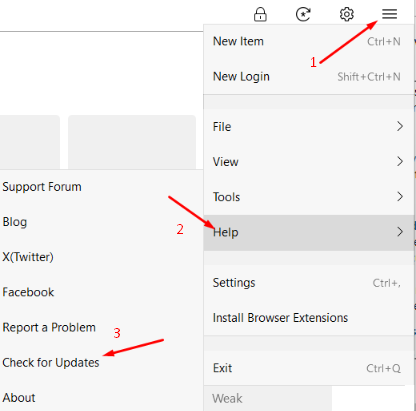
You can check for updates in the desktop app by going to Hamburger Menu > File > Help > Check for Update.
-
The technical team is still investigating this issue. While we don’t have a specific release timeline at the moment, please be assured that the fix will be made available as soon as it’s ready. #SI-3121
-
The changes have been implemented. You may now try to complete your license purchase at your convenience.
-
Ensure that Face ID is turned on in your device’s settings as well as within the Enpass app. If the issue persists, please share the below details: OS version of the device. Enpass app version
-
To assist you more effectively, please provide the following information: Have you imported data from any other password manager? Are you encountering this issue with a specific item or with all items? If the issue is related to a particular item, kindly create a duplicate of that item, make some changes for security purposes, and share the updated item with us along with the PSK.
