


Tarun Singh Rawat
Enpass team member
-
Joined
Everything posted by Tarun Singh Rawat
-
If a sync error occurs, Enpass displays a notification in the bottom-right corner of the Enpass app.
-
Please disconnect your Enpass vault from WebDAV on all devices and then reconnect it. Once all devices are synced, create a test entry on one device, wait for the sync to complete, and verify that the test entry appears on the other devices. If the issue persists, open your Enpass app, go to Settings → Vaults → Sync, and check for any sync errors on any device. If you see an error, please email a screenshot along with this forum link to support@enpass.io.
-
We have already submitted the request to our technical team for evaluation as a potential feature in future updates. Please note that several factors will be taken into account during the decision-making process. #SI-4085
-
We apologize for the delay. The technical team is still investigating the issue, and we will get back to you as soon as we have an update. #SI-4472
-
Thank you for the clarification. We have informed the technical team and will update you as soon as we have further details.
-
Currently, the Enpass app for Android does not allow disabling the Autofill popup for specific browsers or apps. I have shared your suggestion with our technical team for review, and they will consider it as a potential feature request. Please note that several factors need to be evaluated before any changes can be implemented. #SI-3621
-
The Lifetime plan is currently not part of our active offerings. We’ve introduced a new 3-year plan that provides long-term access without frequent renewals. It’s also available at a limited-time Black Friday discount. If you’re considering an upgrade, the 3-year plan is the best option right now.
-
To help us investigate the issue on our side, could you please provide the following details: Total number of vaults in your Enpass account Whether any of your vaults are synced to a cloud service Size of your backup file Number of attachments in your vaults Your current Enpass version You can share these details to support@enpass.io so that we can investigate it further from our end.
-
It appears you have installed two instances of Enpass app on your device. Please verify and uninstall the Enpass app which is not setup, keeping the one instance which you are connecting to the cloud account.
-
-
Please follow the steps below to stop Wi-Fi sync: Turn off your internet connection (or enable flight mode) on your device. Close the Enpass app completely and remove it from recent apps. Reopen Enpass. Navigate to the vault that appears to be stuck. Tap Disconnect to remove the Wi-Fi Sync setup.
-
Please retrieve and share the crash report from your Mac by following these steps: Open the Console app (Cmd + Space → type "Console"). Go to the Crash Reports section. Locate any crash entry related to Enpass, then right-click and select "Reveal in Finder." This will open the folder and Find the relevant .ips file. Once located, please share the file with support@enpass.io, along with this discussion forum link.
-
-
Please follow the steps below to stop Wi-Fi sync: Turn off your internet connection (or enable flight mode) on your device. Close the Enpass app completely and remove it from recent apps. Reopen Enpass. Navigate to the vault that appears to be stuck. Tap Disconnect to remove the Wi-Fi Sync setup.
-
Our development team is actively investigating it. While we don’t have a confirmed timeline yet, we’re working to identify the root cause and determine an estimated timeframe for a fix. We’ll be sure to share any updates as soon as they’re available. Thank you for your continued patience and understanding.
-
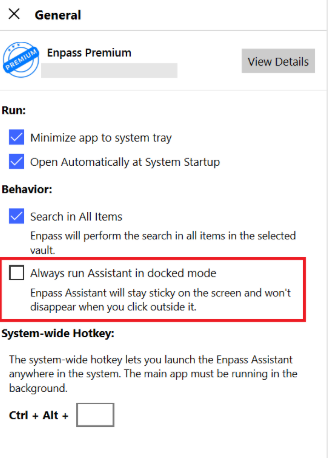
To make it easier for you to copy and paste your Username, Password, and other fields simultaneously, we recommend enabling the “Always open Assistant in Docked mode” option in Enpass General settings. By enabling this feature, the Enpass Assistant will remain visible in the foreground, allowing for a smoother and more efficient experience while filling in your credentials.
-
Thank you for your response. I have notified the technical team and will keep you posted on any progress.
-
Thank you for your response. We have received the support ticket sent to support@enpass.io and will be responding to you directly through that ticket.
-
To help us resolve your issue, could you let us know if you've imported items from another password manager? If yes, which one?
-
@MrElectrifyer To assist you more effectively, I would greatly appreciate your help with a few details: Could you kindly confirm if the Windows authentication pop-up appears when you try enabling Windows Hello? If possible, a short video of this behavior would be incredibly helpful. Please share the version of your TPM to ensure we're on the same page with your system's configuration. In Enpass, could you enable logging, then attempt to enable Windows Hello again? Once done, please send over the generated logs so I can take a closer look. If possible, please test with the latest version of Enpass from the Windows Store or the most recent build from our website. This will help us determine if the issue persists with the latest updates. As a final step, I recommend testing with a fresh local Windows profile to rule out any profile-specific issues. Please share these details at support@enpass.io, and we will assist you directly on the ticket.
-
-
You can purchase the One-Time (Lifetime) Plan through the Enpass mobile app (available on both iOS and Android) or directly on the Enpass website at https://www.enpass.io/pricing/. The best available discount will always be updated there. If you purchase the Lifetime Plan with the same email address you used for your current subscription, you can cancel the yearly plan to prevent it from auto-renewing. Your account will then switch to the lifetime license, which will automatically sync across all your devices.
-
We appreciate you following up, and thank you for your patience. Our technical team is actively working on this, and we’ll keep you updated as soon as we have more to share.
-
Thank you for your thoughtful feedback and for recognizing the ongoing community contributions related to Enpass CLI tools. We want to assure you that this feature is on our development roadmap. However, we currently don’t have a timeline to share. We appreciate your understanding and continued support.
-
Thank you for reaching out and sharing the necessary details. Our team is looking into it, and we’ll keep you posted on any progress.

