


Tarun Singh Rawat
Enpass team member
-
Joined
Everything posted by Tarun Singh Rawat
-
-
I've reported this issue to the technical team. They are currently investigating it, and I will reach out to you with updates as soon as I receive them. #SI-4273
-
We have addressed the concern in ECS-55717 and marked ECS-55735 as a duplicate.
-
To view the password, you may need to press and hold the Shift + Ctrl + H key(Windows & Linux) or the Option key(Mac).
-
I've reported this issue to the technical team. They are currently investigating it, and I will reach out to you with updates as soon as I receive them. #SI-4276
-
Please follow the steps below: On a device where Enpass is functioning properly, sync your Enpass data with your cloud service and ensure you remember your master password. On your Mac, navigate to the Documents folder and locate the "Enpass" folder. Rename this folder to "Enpass2." Quit Enpass (using CTRL+Q) and then reopen the application. Open Enpass on your Mac (this will initiate a fresh setup) and proceed using your registered email address. Connect your vault to your existing cloud service and access it using your master password. Following these steps should allow you to access Enpass with your master password and ensure that your data is synchronized across your devices.
-
I've shared your suggestion with our technical team for further review, and they will evaluate it as a potential feature request. Please understand that there are several factors to consider before any changes can be made. #SI-4290
-
Please download the latest version of the Enpass app on your Android device and check if the issue has been resolved. Additionally, make sure that the "Android Autofill Service" and "Autofill using Accessibility" settings are enabled under Settings > Autofill in Enpass app.
-
We’ve designed it to behave similarly to the iOS Contacts app, where special characters appear at the top, just like in the Mac Finder app. #SI-3674
-
I've shared your suggestion with our technical team for further review. Please understand that there are several factors to consider before any changes can be made. #SI-4289
-
We've already included the feature you asked for in our development roadmap, and I've shared your feedback with the team. Thanks for your patience as we work on implementing it. SI-2064
-
Regarding the Autofill issue, our technical team is actively investigating and working on a solution. While we don’t have a specific timeline for its release yet, rest assured that it will be made available as soon as it’s ready. #SI-4269
-
We've already included the feature you asked for in our development roadmap, and I've shared your feedback with the team. Thanks for your patience as we work on implementing it.
-
-
-
The technical team has developed a fix, and it will be included in a future release. While we don't have a specific timeline for its release, the fix will be made available as soon as it's ready. We appreciate your patience in the meantime.
-
I've reported this issue to the technical team. They are currently investigating it, and I will reach out to you with updates as soon as I receive them. #SI-4276
-
Enpass Pro users will not be charged again and will never be forced to subscribe however Enpass does encourage its Pro users to upgrade to Premium Lifetime as it includes robust security features like 2FA, Breach Monitoring and Passkey compatibility audit. Upgrading from Pro to Premium is entirely at the user's discretion.
-
-
Enpass does provide the option to customize the keyfile extension. You can choose any file type when creating or opening a keyfile on the lock page, allowing more flexibility in how you manage it.
-
The behavior you're seeing is expected, as Enpass moves all files in the backup location when the directory is changed. To avoid data loss, please store only Enpass files in the backup folder and create separate folders for other data.
-
Yes, you can assign a template to multiple categories in Enpass! For detailed instructions on how to manage categories and templates, please check the links below: Customizing Categories in Enpass Customizing Templates in Enpass
-
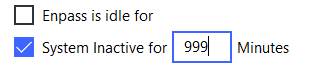
As an alternative, you can modify the duration for the "Enpass is idle for" or "System inactive for" options to control when Enpass automatically locks.
-
Please follow these steps on the device where you're facing the issue: Step 1: Quit Enpass by pressing Ctrl + Q (if it’s running). Go to the User Documents folder and rename the Enpass folder (e.g., "oldenpass"). Open Enpass, which will display the welcome screen. Select "Personal" and register Enpass using your email ID. Select the “This PC” option, then click on “Create a new vault” and set up your master password. Create a dummy item and save it in Enpass. If the item gets successfully added, please follow these additional steps: Open Enpass on your Android device, where the full database is available. Go to Advanced Settings → Backup → Select “Over Wi-Fi” → Enter the URL in your Linux system browser. Download the backup to your Linux device. Now, on the Linux platform: Open Enpass. Go to File → Import → Enpass → Backup File. Locate and select the backup file. Restore the database.
-
